Wednesday, May 27, 2015

Recovering unallocated space of a USB flash drive.

Today I played with the latest SUSE Linux Live. I had not have a DVD drive and used USB flash drive instead. I wanted to reformat my Recovering unallocated space of a USB flash drive.
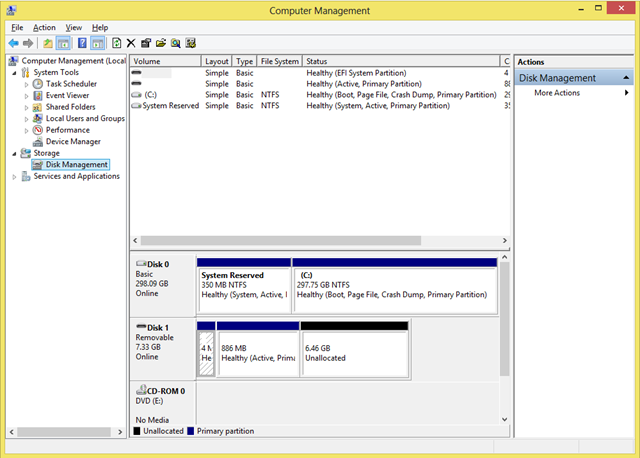

Today I played with the latest SUSE Linux Live. I had not have a DVD drive and used USB flash drive instead. I wanted to reformat my flash drive, but suddenly found it that it had not been possible. The most of the disk space had been unallocated, and my Windows 8 did not allow me to use it.
but suddenly found it that it had not been possible. The most of the disk space had been unallocated, and my Windows 8 did not allow me to use it.

Unallocated
Unfortunately Windows does not support Fdisk anymore. But there is another good command line tool to solve this problem. The tool’s name is DiskPart. I would say it is the next generation of Fdisk tool. DiskPart provides you information about your partitions and volumes, allows you to delete and create partitions, extend NTFS volumes, etc.

Let’s remove unallocated space. First of all run Windows command line and type diskpart in the command prompt. Windows will ask you for Administrator permissions to run the tool. Then run list disk command to find your USB flash disk’s number. It should be the same as disk’s number in Computer Management tool. It was 1 in my case. Next you should chose the disk to work with. Type select disk  command, e.g. select disk 1. The next step is to clean all volumes and partitions on the disk. Use clean command to do that. The last step is to create a primary partition. You can do that using create partition primary command. That’s all. You should be able to format your flash disk now.

This is how I removed unallocated space on my machine:

Microsoft DiskPart version 6.2.9200

Copyright (C) 1999-2012 Microsoft Corporation.

On computer: COMPUTER

DISKPART> list disk

  Disk ###  Status         Size     Free     Dyn  Gpt
  --------  -------------  -------  -------  ---  ---
  Disk 0    Online          298 GB      0 B
  Disk 1    Online         7509 MB  6619 MB

DISKPART> select disk 1

Disk 1 is now the selected disk.

DISKPART> clean

DiskPart succeeded in cleaning the disk.

DISKPART> create partition primary

DiskPart succeeded in creating the specified partition.

DISKPART> exit

Sunday, April 19, 2015

Price Tree : Online shopping site price comparison and tracking tool

As all we know, price of products change everyday in online shopping sites like amazon, flipkart. We have to manually check change of the product price everyday and price of the same product in different online shopping website to get best possible rate. Hereafter we don't have to check manually.

Pricetree( http://www.pricetree.com/) made it easy for us. Price tree offers below features


Price Drop Alert : If we subscribe by giving email address for particular product, we get price drop alert in emails
Price Comparison: when we are in product page, we will get price of the that product in all other online shopping sites along with name of the product and image of the product
Price History : When we are in the product page, we can we how the product price changed over time 
Coupons : Most importantly we will get all the available coupons for the product automatically.


What are you waiting for, add the chrome extension to your browser now.


Check the youtube video of the price tree.

Wednesday, January 21, 2015

Must Have Android Apps for your Smartphone


Google Fit :  I rank Google fit as no 1 must have app for android phones. By just installing it, you can track your walking, running and cycling. Earlier Google had application called Google Tracks, in which you have to click on track before starting activity. In Google Fit, You don't have to click any button to track your activities, just install app and keep it in your pocket. You can access the data in browser also. See some of the reports screenshots below.


Newshunt: Newshunt is old app in the app market. It will brings us digital newspaper from all the Indian languages. Now Newshunt started with selling eBooks on the same app. Specialty of this Newshunt books is you can buy book by paying money from y our mobile currency. It means you don't have to use your credit card or debit card details for buying books. It's worth to mention that books are very cheap compare to other sites.Along with books and instant news, you get live cricket score.


MX Player
MX player is must app for Android phones. It plays almost all kinds of videos. Along with videos, you can play music too. You can lock the video when video is playing. You can alter volume and brightness by touch.

WunderlistWunderlist is best to do app. Specialty is wunderlist is stand alone app. It will get sync whenever you connect to internet. It is available in web, desktop and app.It's best app to maintain personal to do list.

Thank you for reading. Please comment your views.

Monday, January 5, 2015

Control Smartphone from Desktop

As we all know, we can transfer files between desktop and smartphone using USB cable and Bluetooth.

Have you ever imagined monitoring your smartphone from desktop?. If your answer is no, don't worry because it's already reality. Now it's more than just transferring files, We can get the smartphone notifications in Desktop.No not only just notifications, you can send messages, make calls what not. More importantly, We can use whatsapp on Desktop. Yes you read it right, you can chat in whatsapp on Desktop without installing Bluestacks.


You can do all this by downloading Airdroid in your smartphone and desktop. Along with controlling mobile from desktop, you can transfer files very fast.


Transfer files between pc to smartphone.
You can transfer images, music, videos and documents between smartphone, tablet and desktop in 40x faster speed than bluetooth using an app called SHAREit. SHAREit lets you transfer files between cross platform and different device SHAREit built by lenovo use WIFI network to send files in seconds.
Share your files with any device.


Tuesday, December 16, 2014

Creating Hotspot in Laptop - Sharing internet from Laptop to Smartphone

Have you ever thought of  accessing internet from your laptop to smartphone?
Have you ever thought of you should carry your router everywhere to connect multiple devices like smartphone, tablet and laptop to internet.

If your answer is yes, we have solution for your problem. So keep on reading...
If your answer is no, it is great useful piece of information. So keep on reading..


If your able to create a hotspot in your laptop, you can share internet with other devices like smartphone, tablet, e-reader and other laptops. How cool, isn't it!

You can easily convert your laptop as virtual router by using so many software like Connectify, mhotspot, MyPublicWifi and etc.

Connectify is most stable and easy to use software but its paid software. In free version, hotspot stops at every 30 minutes.

MyPublicWifi is  free tool and it is very easy to use.Click here to get MyPublicWifi

You can even create hotspot in your PC by connecting Data Card.

Have a Great Holidays.

Wednesday, June 25, 2014

Spellnumber In Rupees In Excel

Spellnumber In Rupees In Excel


Following function convert ( Rupees in figure ) numeric value in a Microsoft Excel worksheet cell into its equivalent in (Rupees in Word ) English words.
e.g.  =SpellNumber(2450) will display as Rupees Two Thousand Four Hundred Fifty Only 

After copying following code, Enable macro and use above function.

How to create the sample function Called SpellNumber
  1. Start Microsoft Excel.
  2. Press ALT+F11 to start the Visual Basic Editor.
  3. On the Insert menu, click Module.
  4. Type the following code into the module sheet.
Function SpellNumber(amt As Variant) As Variant
Dim FIGURE As Variant
Dim LENFIG As Integer
Dim i As Integer
Dim WORDs(19) As String
Dim tens(9) As String
WORDs(1) = "One"
WORDs(2) = "Two"
WORDs(3) = "Three"
WORDs(4) = "Four"
WORDs(5) = "Five"
WORDs(6) = "Six"
WORDs(7) = "Seven"
WORDs(8) = "Eight"
WORDs(9) = "Nine"
WORDs(10) = "Ten"
WORDs(11) = "Eleven"
WORDs(12) = "Twelve"
WORDs(13) = "Thirteen"
WORDs(14) = "Fourteen"
WORDs(15) = "Fifteen"
WORDs(16) = "Sixteen"
WORDs(17) = "Seventeen"
WORDs(18) = "Eighteen"
WORDs(19) = "Nineteen"
tens(2) = "Twenty"
tens(3) = "Thirty"
tens(4) = "Fourty"
tens(5) = "Fifty"
tens(6) = "Sixty"
tens(7) = "Seventy"
tens(8) = "Eighty"
tens(9) = "Ninety"
FIGURE = amt
FIGURE = Format(FIGURE, "FIXED")
FIGLEN = Len(FIGURE)
If FIGLEN < 12 Then
FIGURE = Space(12 - FIGLEN) & FIGURE
End If
If Val(Left(FIGURE, 9)) > 1 Then
SpellNumber = "Rupees "
ElseIf Val(Left(FIGURE, 9)) = 1 Then
SpellNumber = "Rupee "
End If
For i = 1 To 3
If Val(Left(FIGURE, 2)) < 20 And Val(Left(FIGURE, 2)) > 0 Then
SpellNumber = SpellNumber & WORDs(Val(Left(FIGURE, 2)))
ElseIf Val(Left(FIGURE, 2)) > 19 Then
SpellNumber = SpellNumber & tens(Val(Left(FIGURE, 1)))
SpellNumber = SpellNumber & WORDs(Val(Right(Left(FIGURE, 2), 1)))
End If
If i = 1 And Val(Left(FIGURE, 2)) > 0 Then
SpellNumber = SpellNumber & " Crore "
ElseIf i = 2 And Val(Left(FIGURE, 2)) > 0 Then
SpellNumber = SpellNumber & " Lakh "
ElseIf i = 3 And Val(Left(FIGURE, 2)) > 0 Then
SpellNumber = SpellNumber & " Thousand "
End If
FIGURE = Mid(FIGURE, 3)
Next i
If Val(Left(FIGURE, 1)) > 0 Then
SpellNumber = SpellNumber & WORDs(Val(Left(FIGURE, 1))) + " Hundred "
End If
FIGURE = Mid(FIGURE, 2)
If Val(Left(FIGURE, 2)) < 20 And Val(Left(FIGURE, 2)) > 0 Then
SpellNumber = SpellNumber & WORDs(Val(Left(FIGURE, 2)))
ElseIf Val(Left(FIGURE, 2)) > 19 Then
SpellNumber = SpellNumber & tens(Val(Left(FIGURE, 1)))
SpellNumber = SpellNumber & WORDs(Val(Right(Left(FIGURE, 2), 1)))
End If
FIGURE = Mid(FIGURE, 4)
If Val(FIGURE) > 0 Then
SpellNumber = SpellNumber & " Paise "
If Val(Left(FIGURE, 2)) < 20 And Val(Left(FIGURE, 2)) > 0 Then
SpellNumber = SpellNumber & WORDs(Val(Left(FIGURE, 2)))
ElseIf Val(Left(FIGURE, 2)) > 19 Then
SpellNumber = SpellNumber & tens(Val(Left(FIGURE, 1)))
SpellNumber = SpellNumber & WORDs(Val(Right(Left(FIGURE, 2), 1)))
End If
End If
FIGURE = amt
FIGURE = Format(FIGURE, "FIXED")
If Val(FIGURE) > 0 Then
SpellNumber = SpellNumber & " Only "
End If
End Function

Saturday, March 22, 2014

How To 'Fix Bootmgr Is Missing' In Windows Vista/7

How To 'Fix Bootmgr Is Missing' In Windows Vista/7

Ok we have all had this horrible error at some point in our life, yes the 'Bootmgr Is Missing' error but the good news is you do not have to worry about it being anything to do with Hardware Issues because it has nothing to do with that, and best of all this is an easy fix providing that your have a Windows Recovery or Installation DVD.
SnapShot_103023.png 

Right we have 2 methods here for Fixing this issue......

Step 1 - Is using Startup Repair sometimes this will Fix the Issue. Note: You may need to Run 3 - 4 Times.

Step 2 - Will always Fix this Issue as I have never seen it fail yet.

So..... 2 choices, you can do them both starting with step 1 or you can just go to step 2 and get fixed straight away. I am Just being honest by putting both options here for you 

Step 1

Ok first things first, dig out your Windows Installation DVD and pop it in the Drive and then Reboot your System.

Now Select your correct Language and Click on Next.........

SnapShot_1.png 
SnapShot_103023.png 
Ok now here Click on 'Repair Your Computer'

SnapShot_2.png 
SnapShot_103023.png 
Now it is searching for Windows Installations...........

Once it has finished searching.... 

  • Make sure that the Top Option has been select 'Use recovery tools that can help fix problems starting Windows. Select an Operating System To Repair'.
  • Highlight Your Windows Installation in the Window Box
Now Click on Next..........

SnapShot_3.png 
SnapShot_103023.png 
Ok.... Now lets try to see if the 'Startup Repair' will Fix the 'Bootmgr Is Missing' Error first.

So Click on 'Startup Repair'..........

SnapShot_4.png 
SnapShot_103023.png 
Now the Startup Repair is scanning your System for the Problem in question.

Sometimes the Startup Repair will not fix this problem but it is always worth a try!

SnapShot_5.png 

SnapShot_6.png 

Ok so no Joy with the 'Startup Repair'?

Don't panic the next step will Fix your problem for sure, it is just sometimes the Startup Repair will Fix this issue but not always so let's move on to Step 2.............

SnapShot_103023.png 

Step 2

Now Click on 'View advanced options for system recovery and support' to take us back to the 'System Recovery Options'

SnapShot_6.png 
SnapShot_103023.png 
Ok now we are back at the 'System Recovery Options' Main Menu.

Now this time we are going to Select 'Command Prompt' so Click on 'Command Prompt'

SnapShot_7.png 
SnapShot_103023.png 
Ok in the Command Prompt Window Type c: and 'Press Enter'

Now at the C:\ Type cd boot and then 'Press Enter'..........

SnapShot_8.png 
SnapShot_103023.png 
Ok all good? If you Command Prompt Window looks like the one below then we are good 

Lets move onward........

SnapShot_9.png 
SnapShot_103023.png 
Now at the C:\Boot Type in the Following Commands and 'Press Enter' after each and every command.

bootrec /FixMbr
bootrec /FixBoot
bootrec /RebuildBcd

SnapShot_10.png 
SnapShot_103023.png 
bootrec /FixBoot

SnapShot_11.png 
SnapShot_103023.png 
bootrec /RebuildBcd

SnapShot_12.png 

Ok that it, all done.

Now you know how to Fix a 'Bootmgr Is Missing' Error!

As you can see from my results I didn't have any Issue in the first place but wanted to show you how to Fix the dreaded 'Bootmgr In Missing Error.

SnapShot_13.png