Thursday, July 2, 2026

🛡️ IT Security Awareness | Protect Your Laptop While Traveling & Keep Your Device Updated

 Dear Team,

Cybersecurity starts with simple everyday actions. Whether you're traveling for business or working from the office, following a few security best practices can help protect both your device and our company data.


💼 1. Keep Your Laptop Secure While Traveling

When you're on the move, your laptop is more vulnerable to loss, theft, or unauthorized access.

✅ Best Practices

  • 🔒 Keep your laptop with you at all times. Never leave it unattended in airports, hotels, cafés, or vehicles.
  • 💻 Lock your screen (Windows + L) whenever you step away, even for a few minutes.
  • 🌐 Avoid using public or shared computers to access company resources.
  • 📶 If you need internet access, use your mobile hotspot instead of public Wi-Fi whenever possible.
  • 🚨 Report any lost or stolen company device to the IT Team immediately.

Remember: A few seconds of caution can prevent a major security incident.


🔄 2. Why Operating System and Software Updates Matter

Software updates are more than just new features. They fix security vulnerabilities that attackers actively exploit.

✅ Best Practices

  • ✔️ Install Windows and application updates as soon as they are available.
  • 🔁 Restart your computer when prompted to complete security updates.
  • 🛡️ Keep Microsoft Defender and other security software enabled and up to date.
  • 📦 Update commonly used applications such as Microsoft Office, web browsers, Adobe Acrobat Reader, and other business software.
  • 🛠️ If updates fail or repeatedly prompt for installation, contact the IT Team.

Remember: An updated device is one of your strongest defenses against cyber threats.


🔐 Stay Secure. Stay Updated. Stay Protected.

Thank you for helping us maintain a secure and resilient workplace.

If you have any questions or need assistance, please raise a support ticket with the IT Team.

Thursday, June 11, 2026

🔐 Mobile Security Awareness


🔐 Mobile Security Awareness

Protect Yourself from APK Scams and WhatsApp Fraud

A few seconds of caution can prevent financial loss, identity theft, and account compromise.


📱 Why This Matters

Smartphones have become an essential part of our daily lives. We use them for banking, communication, shopping, work, and storing personal information.

Unfortunately, cybercriminals know this too.

Today, one of the fastest-growing threats is the distribution of malicious APK files and fraudulent WhatsApp messages designed to steal personal data, banking credentials, and account access.


🚨 Common APK Scams

An APK (Android Package Kit) is a file used to install applications on Android devices.

Attackers often disguise malicious APK files as:

🎭 Fake Message📌 Purpose
🚔 RTO Traffic Fine NoticeInstall malware
💍 Wedding InvitationSteal personal information
📦 Courier Delivery UpdateCapture banking details
⚡ Electricity Bill AlertTrick users into payments
🏦 Bank KYC UpdateSteal account credentials
💰 Income Tax RefundCollect sensitive information
💼 Job Offer ApplicationGather personal data
🏛️ Government Scheme BenefitConduct fraud
🟢 WhatsApp Premium VersionHijack WhatsApp accounts
🎁 Cashback & Recharge OfferInstall malicious software

⚠️ What Can Happen If You Install a Malicious APK?

A single installation can allow attackers to:

❌ Read your SMS messages and OTPs

❌ Access your WhatsApp conversations

❌ Steal passwords and account credentials

❌ Collect banking information

❌ Track your activities

❌ Take control of your device remotely


✅ How to Stay Safe

1️⃣ Download Apps Only from Trusted Sources

Always use:

✔️ Google Play Store

Avoid:

❌ APK files received through WhatsApp

❌ APK files from unknown websites

❌ Apps shared through Telegram or social media


2️⃣ Verify Before You Trust

Before opening a link or installing an application, ask yourself:

🔹 Who sent this?

🔹 Was I expecting it?

🔹 Does it look suspicious?

🔹 Can I verify it independently?

If in doubt, don't proceed.


3️⃣ Review App Permissions

Be cautious if an application requests access to:

📍 Location

📷 Camera

🎤 Microphone

📞 Contacts

📨 SMS Messages

A flashlight app should not need access to your contacts or SMS messages.


🆘 What To Do If You Accidentally Install a Suspicious APK

Immediate Actions

  1. 📶 Disconnect Wi-Fi and Mobile Data

  2. 🗑️ Uninstall the suspicious application

  3. 🛡️ Run a trusted mobile security scan

  4. 🔑 Change passwords for:

    • Gmail

    • Banking Apps

    • Social Media Accounts

    • Other Important Services

  5. 🔐 Review Multi-Factor Authentication (MFA) settings

  6. 👀 Monitor bank accounts and online services for unusual activity


🟢 WhatsApp Security Checklist

Protect your WhatsApp account by enabling the following settings:

🔐 Two-Step Verification

Adds an extra layer of protection to your account.

📵 Silence Unknown Callers

Reduces spam and scam calls.

🌐 Protect IP Address in Calls

Helps improve privacy during voice and video calls.

👤 Privacy Controls

Limit visibility of:

  • Profile Photo

  • Last Seen

  • Online Status

  • Status Updates

🚫 Never Share

  • OTPs

  • Passwords

  • UPI PINs

  • Authentication Codes

  • Banking Information

No legitimate organization will ask for these details through WhatsApp.


💡 The Golden Rule

If a message creates urgency, fear, excitement, or promises easy money while asking you to install an app, click a link, make a payment, or share personal information — stop and verify first.

Cybercriminals rely on emotional reactions.

Take a moment. Verify first.


🛡️ Final Thoughts

Cybersecurity is not just about technology—it's about awareness.

By downloading apps only from trusted sources, securing your WhatsApp account, and verifying unexpected requests, you can significantly reduce your risk of becoming a victim of cybercrime.

Remember:

Think Before You Click.
Verify Before You Trust.
Protect Before You Regret.


✍️ Author

Seshagiri Rao Padaki

Saturday, September 2, 2017

How To Repair A Corrupted SD Card /USB Flash Drive


(CAUTION IT WILL DELETE ALL YOUR DATA ON SD CARD OR USB DRIVE SO PROCEED ONLY IF YOU ARE OK WITH LOOSING DATA) 1- Diskpart 2- List Disk 3- Select Disk 1 (Choose the correct number based on your computer) 4- Clean 5- Create Partition primary 6 - Active 7- Select Partition 1 8 - Format fs=fat32


Wednesday, May 27, 2015

Recovering unallocated space of a USB flash drive.

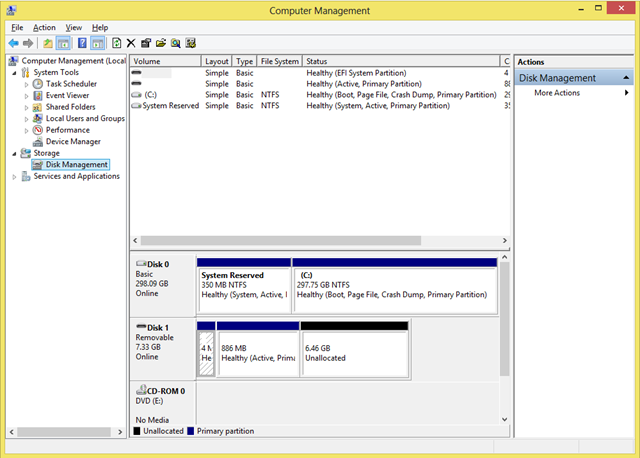
Today I played with the latest SUSE Linux Live. I had not have a DVD drive and used USB flash drive instead. I wanted to reformat my Recovering unallocated space of a USB flash drive.


Today I played with the latest SUSE Linux Live. I had not have a DVD drive and used USB flash drive instead. I wanted to reformat my flash drive, but suddenly found it that it had not been possible. The most of the disk space had been unallocated, and my Windows 8 did not allow me to use it.
but suddenly found it that it had not been possible. The most of the disk space had been unallocated, and my Windows 8 did not allow me to use it.

Unallocated
Unfortunately Windows does not support Fdisk anymore. But there is another good command line tool to solve this problem. The tool’s name is DiskPart. I would say it is the next generation of Fdisk tool. DiskPart provides you information about your partitions and volumes, allows you to delete and create partitions, extend NTFS volumes, etc.

Let’s remove unallocated space. First of all run Windows command line and type diskpart in the command prompt. Windows will ask you for Administrator permissions to run the tool. Then run list disk command to find your USB flash disk’s number. It should be the same as disk’s number in Computer Management tool. It was 1 in my case. Next you should chose the disk to work with. Type select disk  command, e.g. select disk 1. The next step is to clean all volumes and partitions on the disk. Use clean command to do that. The last step is to create a primary partition. You can do that using create partition primary command. That’s all. You should be able to format your flash disk now.

This is how I removed unallocated space on my machine:

Microsoft DiskPart version 6.2.9200

Copyright (C) 1999-2012 Microsoft Corporation.

On computer: COMPUTER

DISKPART> list disk

  Disk ###  Status         Size     Free     Dyn  Gpt
  --------  -------------  -------  -------  ---  ---
  Disk 0    Online          298 GB      0 B
  Disk 1    Online         7509 MB  6619 MB

DISKPART> select disk 1

Disk 1 is now the selected disk.

DISKPART> clean

DiskPart succeeded in cleaning the disk.

DISKPART> create partition primary

DiskPart succeeded in creating the specified partition.

DISKPART> exit

Sunday, April 19, 2015

Price Tree : Online shopping site price comparison and tracking tool

As all we know, price of products change everyday in online shopping sites like amazon, flipkart. We have to manually check change of the product price everyday and price of the same product in different online shopping website to get best possible rate. Hereafter we don't have to check manually.

Pricetree( http://www.pricetree.com/) made it easy for us. Price tree offers below features


Price Drop Alert : If we subscribe by giving email address for particular product, we get price drop alert in emails
Price Comparison: when we are in product page, we will get price of the that product in all other online shopping sites along with name of the product and image of the product
Price History : When we are in the product page, we can we how the product price changed over time 
Coupons : Most importantly we will get all the available coupons for the product automatically.


What are you waiting for, add the chrome extension to your browser now.


Check the youtube video of the price tree.

Wednesday, January 21, 2015

Must Have Android Apps for your Smartphone


Google Fit :  I rank Google fit as no 1 must have app for android phones. By just installing it, you can track your walking, running and cycling. Earlier Google had application called Google Tracks, in which you have to click on track before starting activity. In Google Fit, You don't have to click any button to track your activities, just install app and keep it in your pocket. You can access the data in browser also. See some of the reports screenshots below.


Newshunt: Newshunt is old app in the app market. It will brings us digital newspaper from all the Indian languages. Now Newshunt started with selling eBooks on the same app. Specialty of this Newshunt books is you can buy book by paying money from y our mobile currency. It means you don't have to use your credit card or debit card details for buying books. It's worth to mention that books are very cheap compare to other sites.Along with books and instant news, you get live cricket score.


MX Player
MX player is must app for Android phones. It plays almost all kinds of videos. Along with videos, you can play music too. You can lock the video when video is playing. You can alter volume and brightness by touch.

WunderlistWunderlist is best to do app. Specialty is wunderlist is stand alone app. It will get sync whenever you connect to internet. It is available in web, desktop and app.It's best app to maintain personal to do list.

Thank you for reading. Please comment your views.

Monday, January 5, 2015

Control Smartphone from Desktop

As we all know, we can transfer files between desktop and smartphone using USB cable and Bluetooth.

Have you ever imagined monitoring your smartphone from desktop?. If your answer is no, don't worry because it's already reality. Now it's more than just transferring files, We can get the smartphone notifications in Desktop.No not only just notifications, you can send messages, make calls what not. More importantly, We can use whatsapp on Desktop. Yes you read it right, you can chat in whatsapp on Desktop without installing Bluestacks.


You can do all this by downloading Airdroid in your smartphone and desktop. Along with controlling mobile from desktop, you can transfer files very fast.


Transfer files between pc to smartphone.
You can transfer images, music, videos and documents between smartphone, tablet and desktop in 40x faster speed than bluetooth using an app called SHAREit. SHAREit lets you transfer files between cross platform and different device SHAREit built by lenovo use WIFI network to send files in seconds.
Share your files with any device.


Tuesday, December 16, 2014

Creating Hotspot in Laptop - Sharing internet from Laptop to Smartphone

Have you ever thought of  accessing internet from your laptop to smartphone?
Have you ever thought of you should carry your router everywhere to connect multiple devices like smartphone, tablet and laptop to internet.

If your answer is yes, we have solution for your problem. So keep on reading...
If your answer is no, it is great useful piece of information. So keep on reading..


If your able to create a hotspot in your laptop, you can share internet with other devices like smartphone, tablet, e-reader and other laptops. How cool, isn't it!

You can easily convert your laptop as virtual router by using so many software like Connectify, mhotspot, MyPublicWifi and etc.

Connectify is most stable and easy to use software but its paid software. In free version, hotspot stops at every 30 minutes.

MyPublicWifi is  free tool and it is very easy to use.Click here to get MyPublicWifi

You can even create hotspot in your PC by connecting Data Card.

Have a Great Holidays.

Wednesday, June 25, 2014

Spellnumber In Rupees In Excel

Spellnumber In Rupees In Excel


Following function convert ( Rupees in figure ) numeric value in a Microsoft Excel worksheet cell into its equivalent in (Rupees in Word ) English words.
e.g.  =SpellNumber(2450) will display as Rupees Two Thousand Four Hundred Fifty Only 

After copying following code, Enable macro and use above function.

How to create the sample function Called SpellNumber
  1. Start Microsoft Excel.
  2. Press ALT+F11 to start the Visual Basic Editor.
  3. On the Insert menu, click Module.
  4. Type the following code into the module sheet.
Function SpellNumber(amt As Variant) As Variant
Dim FIGURE As Variant
Dim LENFIG As Integer
Dim i As Integer
Dim WORDs(19) As String
Dim tens(9) As String
WORDs(1) = "One"
WORDs(2) = "Two"
WORDs(3) = "Three"
WORDs(4) = "Four"
WORDs(5) = "Five"
WORDs(6) = "Six"
WORDs(7) = "Seven"
WORDs(8) = "Eight"
WORDs(9) = "Nine"
WORDs(10) = "Ten"
WORDs(11) = "Eleven"
WORDs(12) = "Twelve"
WORDs(13) = "Thirteen"
WORDs(14) = "Fourteen"
WORDs(15) = "Fifteen"
WORDs(16) = "Sixteen"
WORDs(17) = "Seventeen"
WORDs(18) = "Eighteen"
WORDs(19) = "Nineteen"
tens(2) = "Twenty"
tens(3) = "Thirty"
tens(4) = "Fourty"
tens(5) = "Fifty"
tens(6) = "Sixty"
tens(7) = "Seventy"
tens(8) = "Eighty"
tens(9) = "Ninety"
FIGURE = amt
FIGURE = Format(FIGURE, "FIXED")
FIGLEN = Len(FIGURE)
If FIGLEN < 12 Then
FIGURE = Space(12 - FIGLEN) & FIGURE
End If
If Val(Left(FIGURE, 9)) > 1 Then
SpellNumber = "Rupees "
ElseIf Val(Left(FIGURE, 9)) = 1 Then
SpellNumber = "Rupee "
End If
For i = 1 To 3
If Val(Left(FIGURE, 2)) < 20 And Val(Left(FIGURE, 2)) > 0 Then
SpellNumber = SpellNumber & WORDs(Val(Left(FIGURE, 2)))
ElseIf Val(Left(FIGURE, 2)) > 19 Then
SpellNumber = SpellNumber & tens(Val(Left(FIGURE, 1)))
SpellNumber = SpellNumber & WORDs(Val(Right(Left(FIGURE, 2), 1)))
End If
If i = 1 And Val(Left(FIGURE, 2)) > 0 Then
SpellNumber = SpellNumber & " Crore "
ElseIf i = 2 And Val(Left(FIGURE, 2)) > 0 Then
SpellNumber = SpellNumber & " Lakh "
ElseIf i = 3 And Val(Left(FIGURE, 2)) > 0 Then
SpellNumber = SpellNumber & " Thousand "
End If
FIGURE = Mid(FIGURE, 3)
Next i
If Val(Left(FIGURE, 1)) > 0 Then
SpellNumber = SpellNumber & WORDs(Val(Left(FIGURE, 1))) + " Hundred "
End If
FIGURE = Mid(FIGURE, 2)
If Val(Left(FIGURE, 2)) < 20 And Val(Left(FIGURE, 2)) > 0 Then
SpellNumber = SpellNumber & WORDs(Val(Left(FIGURE, 2)))
ElseIf Val(Left(FIGURE, 2)) > 19 Then
SpellNumber = SpellNumber & tens(Val(Left(FIGURE, 1)))
SpellNumber = SpellNumber & WORDs(Val(Right(Left(FIGURE, 2), 1)))
End If
FIGURE = Mid(FIGURE, 4)
If Val(FIGURE) > 0 Then
SpellNumber = SpellNumber & " Paise "
If Val(Left(FIGURE, 2)) < 20 And Val(Left(FIGURE, 2)) > 0 Then
SpellNumber = SpellNumber & WORDs(Val(Left(FIGURE, 2)))
ElseIf Val(Left(FIGURE, 2)) > 19 Then
SpellNumber = SpellNumber & tens(Val(Left(FIGURE, 1)))
SpellNumber = SpellNumber & WORDs(Val(Right(Left(FIGURE, 2), 1)))
End If
End If
FIGURE = amt
FIGURE = Format(FIGURE, "FIXED")
If Val(FIGURE) > 0 Then
SpellNumber = SpellNumber & " Only "
End If
End Function

Saturday, March 22, 2014

How To 'Fix Bootmgr Is Missing' In Windows Vista/7

How To 'Fix Bootmgr Is Missing' In Windows Vista/7

Ok we have all had this horrible error at some point in our life, yes the 'Bootmgr Is Missing' error but the good news is you do not have to worry about it being anything to do with Hardware Issues because it has nothing to do with that, and best of all this is an easy fix providing that your have a Windows Recovery or Installation DVD.
SnapShot_103023.png 

Right we have 2 methods here for Fixing this issue......

Step 1 - Is using Startup Repair sometimes this will Fix the Issue. Note: You may need to Run 3 - 4 Times.

Step 2 - Will always Fix this Issue as I have never seen it fail yet.

So..... 2 choices, you can do them both starting with step 1 or you can just go to step 2 and get fixed straight away. I am Just being honest by putting both options here for you 

Step 1

Ok first things first, dig out your Windows Installation DVD and pop it in the Drive and then Reboot your System.

Now Select your correct Language and Click on Next.........

SnapShot_1.png 
SnapShot_103023.png 
Ok now here Click on 'Repair Your Computer'

SnapShot_2.png 
SnapShot_103023.png 
Now it is searching for Windows Installations...........

Once it has finished searching.... 

  • Make sure that the Top Option has been select 'Use recovery tools that can help fix problems starting Windows. Select an Operating System To Repair'.
  • Highlight Your Windows Installation in the Window Box
Now Click on Next..........

SnapShot_3.png 
SnapShot_103023.png 
Ok.... Now lets try to see if the 'Startup Repair' will Fix the 'Bootmgr Is Missing' Error first.

So Click on 'Startup Repair'..........

SnapShot_4.png 
SnapShot_103023.png 
Now the Startup Repair is scanning your System for the Problem in question.

Sometimes the Startup Repair will not fix this problem but it is always worth a try!

SnapShot_5.png 

SnapShot_6.png 

Ok so no Joy with the 'Startup Repair'?

Don't panic the next step will Fix your problem for sure, it is just sometimes the Startup Repair will Fix this issue but not always so let's move on to Step 2.............

SnapShot_103023.png 

Step 2

Now Click on 'View advanced options for system recovery and support' to take us back to the 'System Recovery Options'

SnapShot_6.png 
SnapShot_103023.png 
Ok now we are back at the 'System Recovery Options' Main Menu.

Now this time we are going to Select 'Command Prompt' so Click on 'Command Prompt'

SnapShot_7.png 
SnapShot_103023.png 
Ok in the Command Prompt Window Type c: and 'Press Enter'

Now at the C:\ Type cd boot and then 'Press Enter'..........

SnapShot_8.png 
SnapShot_103023.png 
Ok all good? If you Command Prompt Window looks like the one below then we are good 

Lets move onward........

SnapShot_9.png 
SnapShot_103023.png 
Now at the C:\Boot Type in the Following Commands and 'Press Enter' after each and every command.

bootrec /FixMbr
bootrec /FixBoot
bootrec /RebuildBcd

SnapShot_10.png 
SnapShot_103023.png 
bootrec /FixBoot

SnapShot_11.png 
SnapShot_103023.png 
bootrec /RebuildBcd

SnapShot_12.png 

Ok that it, all done.

Now you know how to Fix a 'Bootmgr Is Missing' Error!

As you can see from my results I didn't have any Issue in the first place but wanted to show you how to Fix the dreaded 'Bootmgr In Missing Error.

SnapShot_13.png

Saturday, December 28, 2013

E- Security Tips From Cyber Crime Police


Guidelines for Online Banking - For more details please refer Online Banking

General Information:

• Don't delete harmful communications (emails, chat logs, posts etc). These may help provide vital information about the identity of the person behind these.

• Remember that all other internet users are strangers. You do not know who you are chatting with. 

• Be extremely careful about how you share personal information about yourself online. 

• Be extremely cautious about meeting online acquaintances in person. If you choose to meet, do so in a public place and take along a friend.

• Save all communications for evidence. Do not delete or alter them in any way. 

• Be aware of all e-mails and SMS from any stranger luring you with billion dollar lottery prize, jobs in UK and huge wealth.

• Be sure that your WI-FI Network secured, use a strong password.

• Never share your passwords with anyone. Change the password frequently using a combination of letters, numerical and special characters.

• Never forget to sign out of your email or any other accounts.

• Never reveal your personal information to any stranger in online chatting.

• Never make online transactions in unsecured sites. Watch for 'https' in the address bar.

• Never follow links to your banking website from another website or e-mail, type it yourself in the address bar.

• Never open spam mails as they contain either virus or spyware. Enable spam filters in your mail boxes.

• Never post sensitive information in social networking and marriage sites.

• Never be greedy for free downloads. They might infect your computers.

• Never let credit cards go out of your sight while paying.

• Never visit sites that contain pornography or terror links.

Suggestions for better security:

• Use strong passwords. Choose passwords that are difficult or impossible to guess. Give different passwords to all other accounts. 

• Make regular back-up of critical data. Back-up must be made atleast once in each day. Larger organizations should perform a full back-up weekly and incremental back-up every day. Atleast once in a month the back-up media should be verified.

• Use Antivirus software and update regularly. 

• Use a firewall. Firewalls are usually software products. They are essential for those who keep their computers online through the popular Broadband and cable modem connections. 

• Do not keep computers online when not in use. Either shut them off or physically disconnect them from Internet connection. 

• Do not open e-mail attachments from strangers, regardless of how enticing the subject line or attachment may be. Be suspicious of any unexpected e-mail attachment from someone you do know because it may have been sent without that person’s knowledge from an infected machine. Regularly download security patches from your software vendors. 

Children:

Do not give out identifying information such as Name, Home address, School Name or Telephone Number in a chat room. Do not send your photograph to anyone on the Net without first checking with your parents or guardians. Do not respond to messages or bulletin board items that are suggestive, obscene, belligerent or threatening. Never arrange a face-to-face meeting without telling parents or guardians. Remember that people online may not be who they seem to be.

Parents:

Use content filtering software's on your PC to protect children from pornography, gambling, hate speech, drugs and alcohol. There is also software to establish time controls for individual users (for example blocking usage after a particular time at night) and log surfing activities allowing parents to see which site the child has visited. Use this software to keep track of the activities of your children. 

E-Businesses Tips to Fight Fraud:

• Develop and publish a comprehensive privacy policy.

• Ensure your employees are trained on the policy and follow it. 

• Monitor the privacy policy and your compliance. 

• Only ask customers for information that is absolutely necessary to complete a transaction.

• Store only absolutely necessary data elements; once a payment is complete, there is no reason to maintain payment information in readable form. 

• Verify the payment system that you implement deletes temporary data files with payment records.

• Make certain server log files do not inadvertently store customer payment information.

• Limit employee access to payment systems and monitor those who have access to sensitive data or payment systems. 

• Use technology tuned for the Internet to detect potential fraud. 

• Follow up on suspicious transactions and immediately report any security breach or loss of computer systems to police.


Friday, September 20, 2013

Check this link for Bangalore Buses Routes and Platform Numbers

Check this link for  Bangalore Buses Routes and  Platform Numbers

 
http://travel2karnataka.com/bangalore_bus_routes.htm

Useful MS word tips in Formatting

Useful MS word tips in Formatting


• Shrinking a Document to Fit

If you've created a document and one or two lines spill over into a new page, you can use the "Shrink to Fit" feature to fit everything on the page. Choose File, Print Preview and click on the Shrink to Fit button.


• Removing Formatting for a Portion of Text

To quickly remove character formatting, such as bold, italic, or underline, and reset text back to the normal style, select the text and press Ctrl+Spacebar (Ctrl+Shift+Z also works). To reset paragraph formatting, such as tabs and indents, back to the normal style press Ctrl+Q.


• Toggle through CASE Changes

You can quickly change the case of text from Title to UPPER CASE to lower case by selecting the text and pressing Shift-F3. Each time you press Shift-F3, the case will change.


• Selecting Text in MS Word

To select a word, double-click the left mouse button on the word

To select a sentence, hold down CTRL and single-click the left mouse button on the sentence.

To select a line of text on the screen, single-click with the left mouse button in the left screen margin at the line you want to select.

To select a paragraph, triple-click the left mouse button in the paragraphs

To select the whole document, hold down CTRL and A, or triple-click the left mouse button in the left margin of the screen.


Put your Mouse in snooze mode: Beware of shoulder and wrist pain

Short keys for Microsoft outlook 2007 Basic Navigation

CTRL+1 Switch to Mail.

CTRL+2 Switch to Calendar.

CTRL+3 Switch to Contacts.

CTRL+4 Switch to Tasks.

CTRL+5 Switch to Notes.

CTRL+6 Switch to Folder List in Navigation Pane.

CTRL+7 Switch to Shortcuts.

CTRL+PERIOD Switch to next message (with message open).

CTRL+COMMA Switch to previous message (with message open).

F6 or CTRL+SHFT+TAB Move between the Navigation Pane, the main Outlook window, the Reading Pane, and the To-Do Bar.

TAB Move between the Outlook window, the smaller panes in the Navigation Pane, the Reading Pane, and the sections in the To-Do Bar.

Arrow keys Move around within the Navigation Pane.

CTRL+Y Go to a different folder.

F3 or CTRL+E Go to the Search box.

ALT+UP ARROW or CTRL+COMMA or ALT+PAGE UP In the Reading Pane, go to the previous message.

SPACEBAR In the Reading Pane, page down through text.

SHFT+SPACEBAR In the Reading Pane, page up through text.

SHFT+PLUS SIGN or MINUS SIGN, respectively Expand or collapse a group (with a group selected) in the Navigation Pane.

LEFT ARROW or RIGHT ARROW, respectively Collapse or expand a group in the e-mail message list.

Creation of items or files in Outlook:


CTRL+SHFT+A Create an appointment. CTRL+SHFT+C Create a contact.

CTRL+SHFT+L Create a distribution list. CTRL+SHFT+X Create a fax.

CTRL+SHFT+E Create a folder. CTRL+SHFT+J Create a Journal entry.

CTRL+SHFT+Q Create a meeting request. CTRL+SHFT+M Create a message.

CTRL+SHFT+N Create a note. CTRL+SHFT+H Create a new Microsoft Office document.

CTRL+SHFT+S Post to this folder. CTRL+T Post a reply in this folder.

CTRL+SHFT+P Create a Search Folder. CTRL+SHFT+K Create a task.

CTRL+SHFT+U Create a task request.